What are Smart Features?
Smart features are features that make creating and editing tasks even smarter by using AI, natural language input, or suggesting tasks based on existing tasks.
This article covers:
Please note that some of the following features are only available on Apple devices and require Structured version 4.6.0 or later. Moreover, some smart features are still in beta.
(1) Available Smart Features
Smart Task Icons
Smart task icons is a feature that adds an icon to your newly created task or event based on its title. Once you select an icon manually, this feature won't override your currently selected task icon.
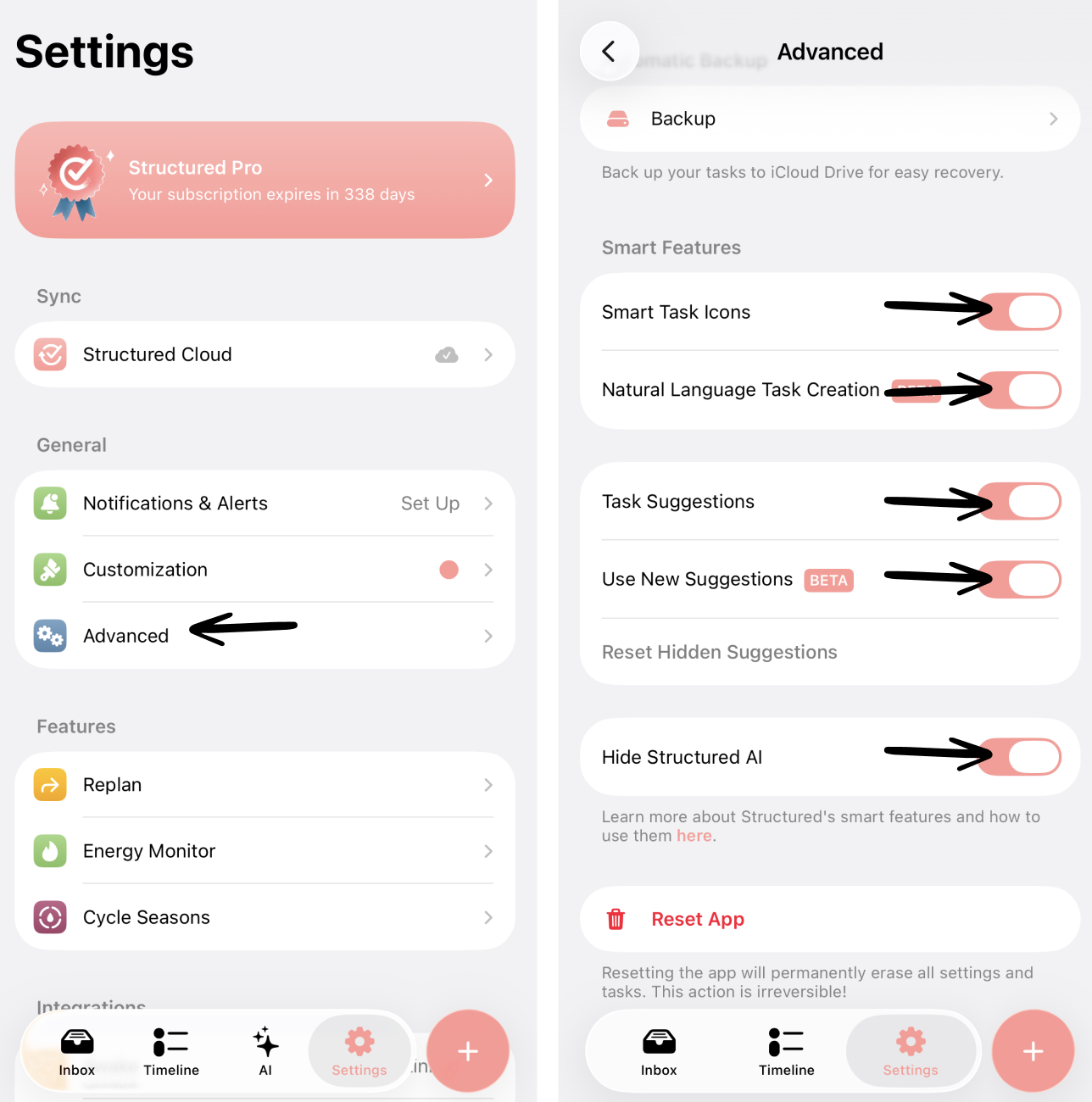
This feature is enabled by default and can be disabled at any time in your Structured ⚙️ Settings > Advanced > Smart Task Icons.
Natural Language Task Creation (beta)
Natural language task creation is a feature that lets you add tasks using natural language input instead of selecting a time or date manually. When creating the task and typing the task's title, you could, for example, write
"Study session at 4 for 1 hour"
and your task called "Study session" will be created from 4 to 5 PM.
This feature is disabled by default and can always be enabled in your Structured ⚙️ Settings > Advanced > Natural Language Task Creation.
⚠️ Please note that this feature is still in beta and for now only available in English, German, French, and Spanish. If you have any feedback, let us know.
Color Prediction (beta)
Color prediction is a feature that lets Structured suggest colors for your tasks based on how you previously selected colors.
Structured might take some time to learn your preferences and can only suggest colors if it notices predictable patterns in how you use colors.
This feature is disabled by default and can be enabled at any time in your Structured ⚙️ Settings > Advanced > Color Prediction.
⚠️ Please note that this feature is still in beta. If you have any feedback, let us know.
Task Suggestions
Task suggestions is a feature that suggests tasks based on your previously created tasks, letting you reuse them. They appear when creating a task below your task's title field.
This feature is enabled by default and can be disabled at any time in your Structured ⚙️ Settings > Advanced > Task Suggestions.
Task Suggestions 2.0 (beta)
With the 4.5.4 release, we have introduced a new, more advanced algorithm to propose tasks. This also considers inbox tasks and lets you hide certain task suggestions.
This feature is disabled by default and can be enabled in your Structured ⚙️ Settings > Advanced > Use Task Suggestions 2.0.
⚠️ Please note that this feature is still in beta. If you have any feedback, let us know.
Hide Structured AI
If you prefer not to use Structured AI, Apple users can disable its visibility in the tab bar. Unfortunately, it is not possible yet to hide Structured AI on your Android device, but we will add the possibility to hide it from the tab bar in the future.
Please note that no data is ever shared with OpenAI as long as you don't accept the terms of use and do not enter anything in the Structured AI chat. Learn more about this here.
This feature is disabled by default and can always be enabled in your Structured ⚙️ Settings > Advanced.
(2) How to Set Up and Disable Smart Features
You can set up and manage your preferred smart features in your Structured ⚙️ Settings when tapping Advanced.