How to Manage & Disable Task Suggestions
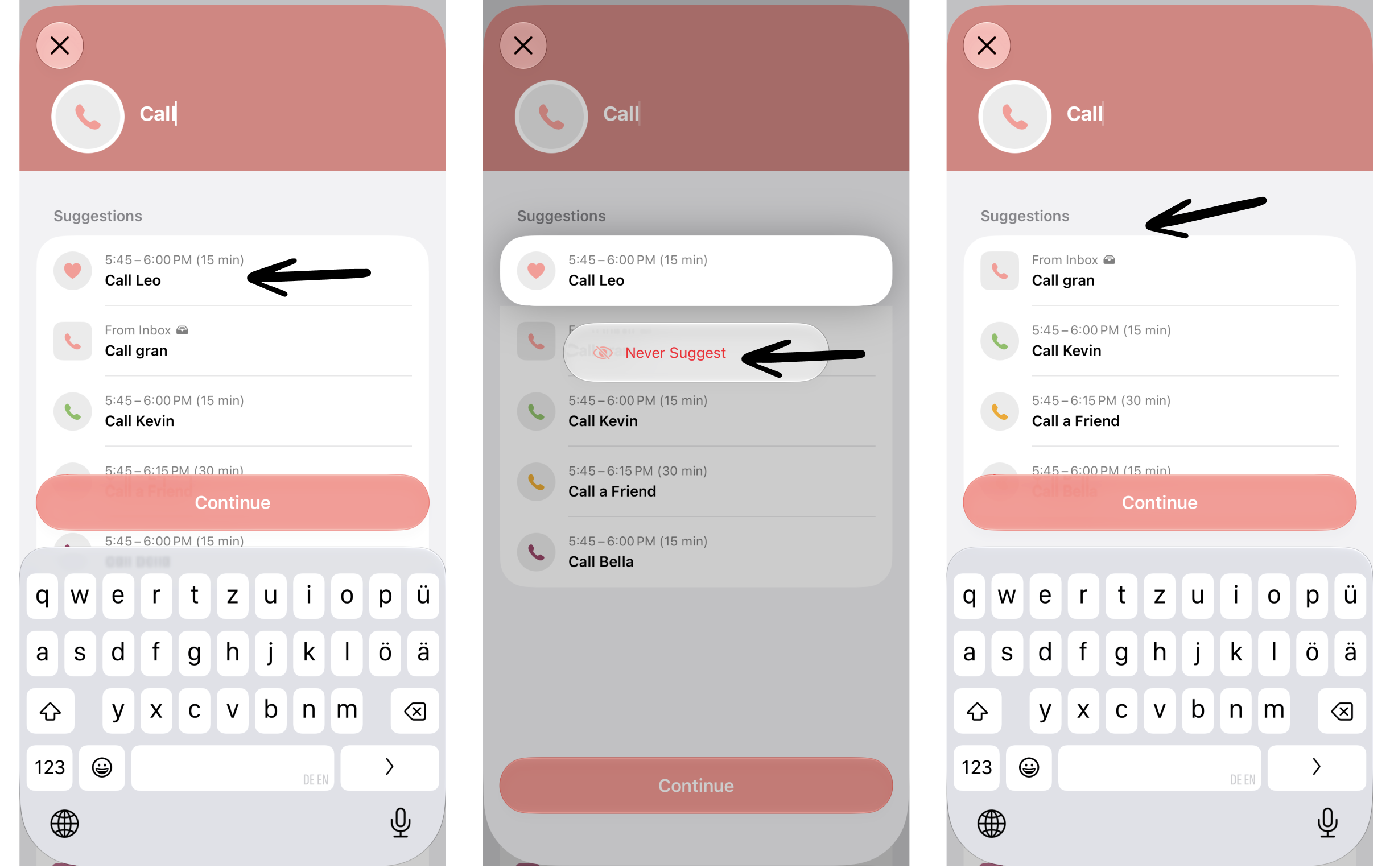
When creating a task, you will be provided with task suggestions based on previously created tasks. These are aimed at accelerating the task creation process when creating a task that you schedule often.
You can both manage to receive task suggestions and delete specific task suggestions.
⚠️ Please note that this feature requires Structured 4.5.4 and is not available for Android and Structured Web users yet. Moreover, some parts of this feature are still in beta.
Enable or Disable Task Suggestions
Task Suggestions
Task suggestions is a feature that suggests tasks based on your previously created tasks, letting you reuse them. They appear when creating a task below your task's title field.
This feature is enabled by default and can be disabled at any time:
Open your Structured ⚙️ Settings
Select Advanced.
Toggle Task Suggestions.
Advanced Task Suggestions 2.0
With the 4.5.4 release, we have introduced a new, more advanced algorithm to propose tasks. This also considers inbox tasks and lets you hide certain task suggestions.
This feature is disabled by default and can be enabled:
Open your Structured ⚙️ Settings
Select Advanced.
Toggle Use Task Suggestions 2.0.
⚠️ Please note that this feature is still in beta. If you have any feedback, let us know.
Delete Specific Task Suggestions
There might be tasks you once created but now don't need anymore. Getting reminded about calling your ex or feeding your deceased dog can be hurtful. This is why you can now delete specific task suggestions:
Long press the suggested task.
Select Never Suggest.
You can always reset all hidden suggestions in case you hid a task accidentally.
Open Structured ⚙️ Settings.
Select Advanced.
Select Reset Hidden Suggestions.