
How to Add Notes
If you have any additional information about your task, such as an address, a phone number, a location, or simple thoughts, you can put these into the notes section of your task.
In this article, you will learn how to add a note to your task.
Add Notes
To add notes to your task:
Create a regular task or open an existing task.
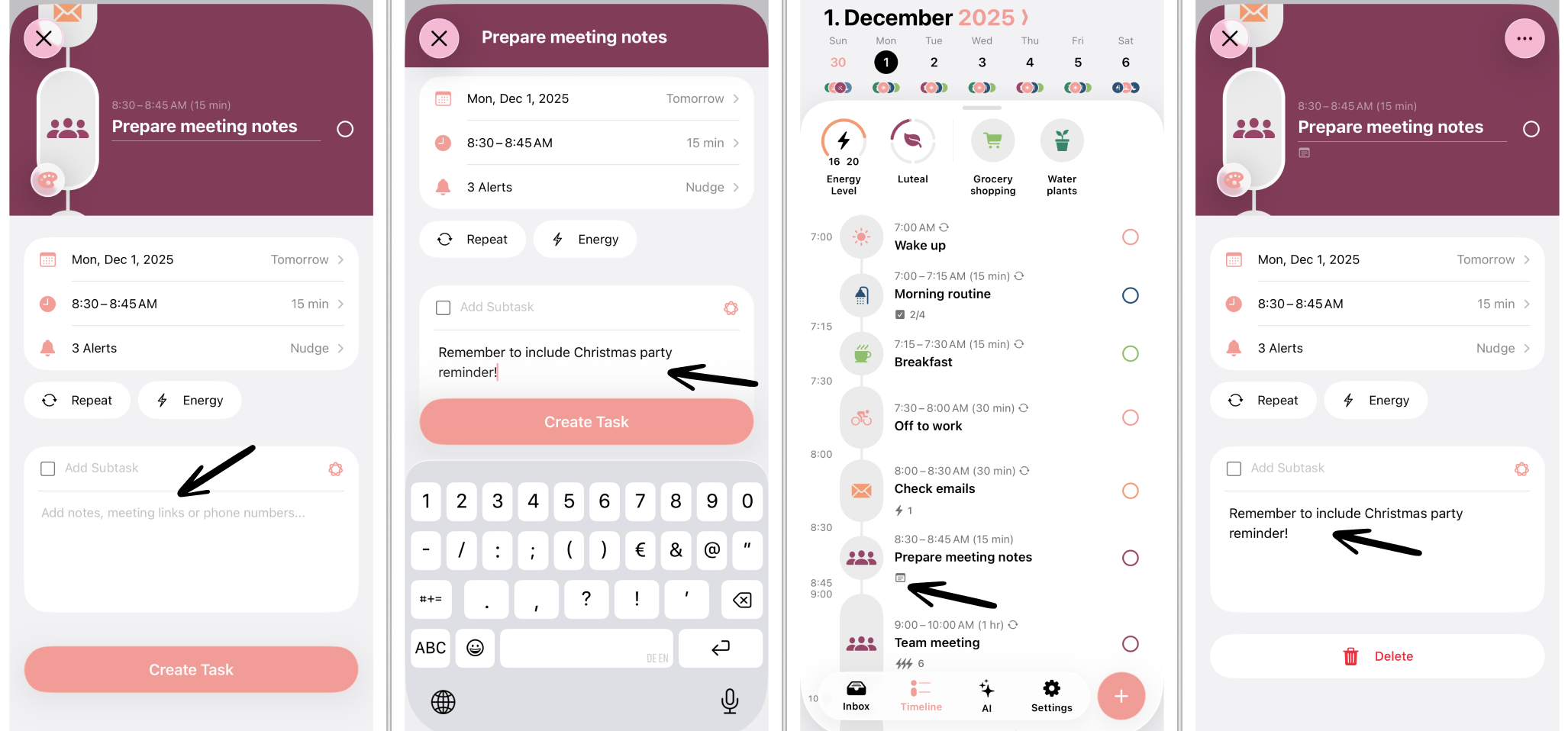
Below the regular task settings, there's a big white field. Tap in the Add notes, meeting links or phone numbers... section.
This will open your keyboard, allowing you to enter notes.
Check Your Notes
You can always see whether your task includes notes by checking for the little notes symbol below your task's title in your timeline.
To check your task notes, simply tap the respective task, which will open the task editor. Here, you can ready your notes.